
Select the model you want to generate your image with.
Add White Background to Photo with Bylo AI - Easy Background Removal Tool
Instantly remove backgrounds and add a white backdrop to your photos with Bylo AI - no editing experience required.

Your Generated Images

One-Click Background Removal and White Background Addition
Bylo AI's intelligent algorithm automatically detects the subject of your photo and replaces the background with a clean, crisp white backdrop. This feature is perfect for eCommerce product photos, social media, and more.
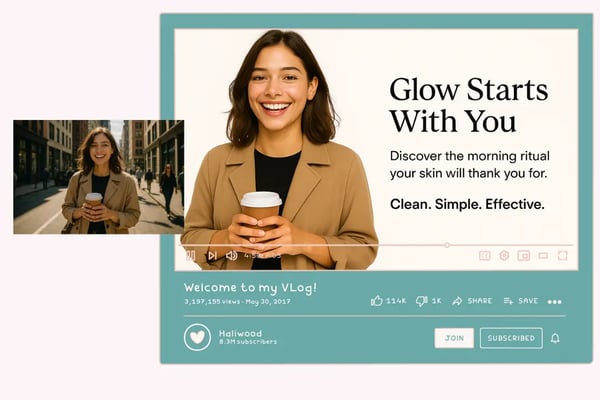
Free and No Login Required
Start editing instantly without the need to sign up or log in. Bylo AI offers a hassle-free experience—just upload your photo and get started. Enjoy full access to background removal and white background features completely free of charge, making it perfect for quick tasks and on-the-go users.
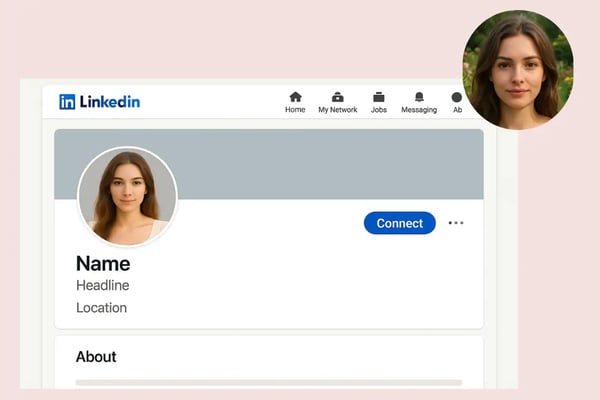
High-Quality Output for Any Use
Export your photos in high-definition PNG or JPG formats, ideal for printing, uploading to websites, or using in presentations. Ensure your images are of the highest quality with Bylo AI.
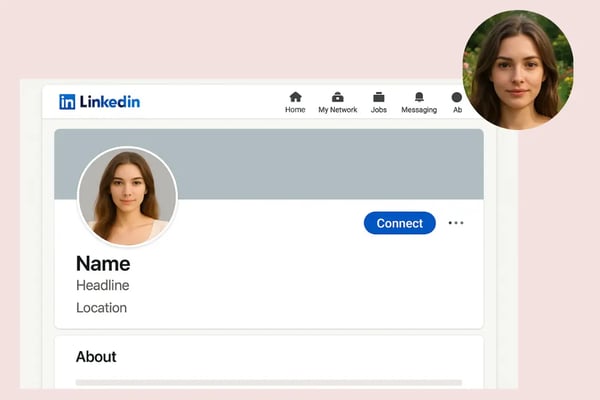
AI-Powered Precision
Bylo AI's advanced artificial intelligenceAdd White Background Features handles intricate details like hair strands, patterns, and edges, ensuring a flawless result even with challenging subjects.
How to Use Bylo AI to Add a White Background to Your Photo
Step 1: Upload Your Photo
Simply upload the photo you want to edit. Bylo AI supports various formats, making it easy to get started.
Step 2: Let AI Process Your Photo
Once uploaded, Bylo AI will automatically detect the main subject of your image and remove the background with its intelligent processing algorithm.
Step 3: Download Your Edited Photo
After the background has been removed and replaced with white, you can preview the result and download the high-quality photo in PNG or JPG format.
Who Can Benefit from Adding a White Background to Their Photos?
Ecommerce Sellers
If you sell products online, a clean white background is essential for your product listings. Bylo AI helps you quickly create professional images for platforms like Amazon, eBay, and Shopify.
Social Media Creators
Enhance your social media posts on platforms like Instagram, LinkedIn, and Facebook with photos that have a consistent, clean white background to highlight your subject.
Professionals Needing ID or Profile Photos
For resumes, social profiles, or official documents, a white background can make your ID or profile photo appear polished and professional in just a few clicks.
Graphic Designers
If you need to create presentations, posters, or marketing materials, Bylo AI provides you with perfectly cropped images on a white background, ready for your next creative project.
User Feedback on Adding a White Background to Photos with Bylo AI
Bylo AI lets me take professional product photos with just my phone. It saves me time and money compared to hiring a photographer.
Sebastian Pilch
eBay Reseller
I often take photos in cluttered environments, and Bylo AI helps me remove all the distractions, making my photos look clean and professional.
Sue Darte
Small Business Owner
I've been using Bylo AI for two years to edit Instagram content. It's so simple to use and the results are always impressive.
Jacob P.
Content Creator
I frequently need white background photos for client headshots. Bylo AI saves me so much time, and the one-click process is a game changer.
Michael L.
Freelancer
I love how precise Bylo AI is—even with complex subjects like jewelry or hair. It gives me studio-quality results without the cost.
Arjun M.
Freelance Photographer
I used Bylo AI to create white background portraits for my resume and LinkedIn profile. It gave me a professional look instantly.
Daniel K.
Job Seeker
Frequently Asked Questions about Adding White Background to Photos
Do I need to create an account to use Bylo AI?
No, Bylo AI is completely free to use without the need for any account or registration.
Can I choose a different background color besides white?
Yes, Bylo AI allows you to customize the background color or use a transparent background if needed.
What image formats does Bylo AI support?
Bylo AI supports all common image formats, including PNG, JPG, and JPEG, ensuring compatibility with your photos.
How accurate is the background removal?
Bylo AI uses advanced AI technology to handle complex edges, such as hair and intricate patterns, ensuring high-quality background removal.
Can I use Bylo AI for bulk image processing?
Yes, Bylo AI offers batch processing, allowing you to remove backgrounds from multiple images at once, saving time on large projects.
Is the image quality suitable for print?
Absolutely! Bylo AI provides high-resolution output, perfect for both online use and printing needs.